
News
How to Correct Wrong Information on Your Postcode
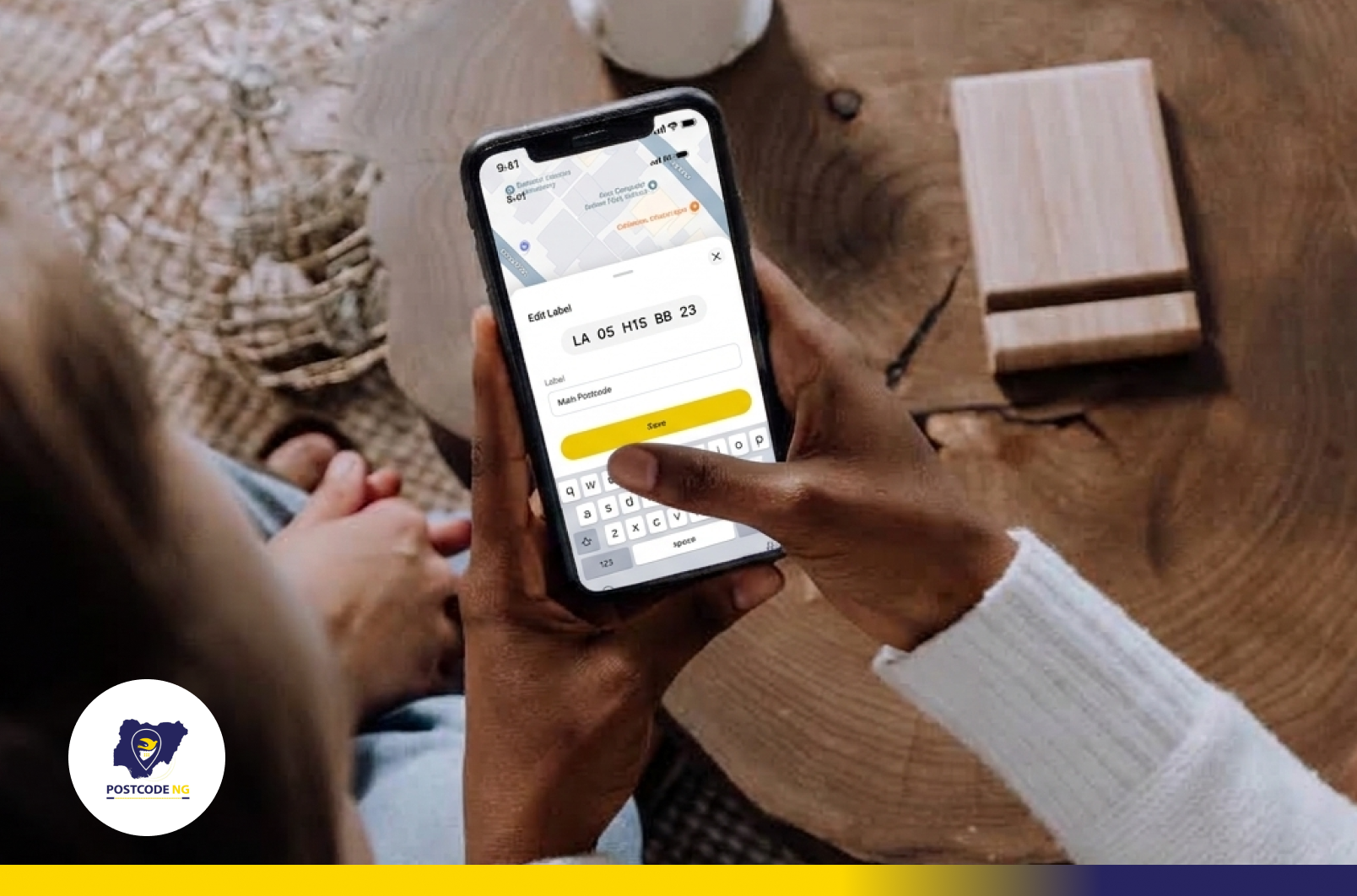
Your postcode is the digital address of your home or business. Couriers use it to find you. Emergency responders use it to reach you. Banks, delivery apps and government agencies use it to confirm where you are.
When the details tied to your postcode are wrong, people lose time. A rider goes to the wrong street. A record shows a bungalow where a two-storey building stands. A shop is listed as a home. These errors are easy to fix.
The Find a Postcode tool lets you suggest corrections straight from your phone. The submission takes about two minutes. NIPOST then reviews your request and completes the process within 48 hours. This guide walks you through every step.
What You Can Correct on Your Postcode
Every postcode page has an Edit option. It opens a screen called Suggest Edit. You can suggest changes to five details.
- Address: The street name, house number and area attached to your postcode.
- Structure type: The kind of building at that location.
- Building use: How the building is used.
- Ownership: Who owns the property.
- Photos: A picture of the building.
You can change one detail or all five in a single visit.
Step 1. Open the Postcode App
Open the app on your phone. The home screen shows a Find Postcode button and a list of your recent searches. Tap the Search tab at the bottom of the screen to open the map view.
Step 2. Search for your postcode
Tap the search bar at the top. It reads "Search postcode, place or alias." Type your full postcode. You can also tap Paste if you copied it from a message, or tap Scan Text to read it from a document.
Postcodes follow a pattern of letters and numbers in groups. Enter every group in the right order. When your postcode appears in the bar, tap the Look up button beneath it.
Step 3. Check the details on your postcode card
The map moves to your building. A card slides up from the bottom of the screen. It shows your postcode, a yellow verified badge, the building use, the structure type and the full address.
Read each line slowly. Compare it with the real building. Look at the street name, the house number, the number of floors, and what the building is used for. Anything that differs from reality needs a correction.
Under the address you will see four buttons. They are Directions, Share, Save and Edit.
Step 4. Tap Edit
Tap Edit to open the Suggest Edit screen. The five options appear in a list. Choose the detail you want to fix. A row of tabs at the top of the next screen lets you move between the details without going back.
Step 5. Suggest your changes
Each detail follows the same pattern. The screen shows the current information with a green tick. Below it is a field for the new information.
Address. Type the correct address in the Suggest New Address field. Use the full form with house number, street, area and city.
Structure type. Tap the dropdown and pick the option that fits your building. The choices are Bungalow, Traditional hut, 1-Storey, 2-Storey, 3-Storey, More than 3 storey, Uncompleted/Unroofed, Dilapidated, Shed/Silo, Temporary container and Permanent container.
Building use. Choose from residential, commercial, institutional, mixed or unknown. Pick mixed when one building serves more than one purpose, such as a shop on the ground floor with flats above.
Ownership. Choose Government, Private Ownership, or Private Agency/Group/Family.
Photos. Tap Add and upload a photo of the building. A clear picture of the front of the building helps the review team confirm your suggestion.
Step 6. Submit your suggestion
The Submit button starts grey. It turns yellow once you make a change. A small yellow dot also appears on each tab where you have made edits. This helps you track which details you have changed.
Tap Submit when you are happy with your changes. A message appears at the bottom of the screen that reads, "Thank you. Your suggestion is being looked at." Your request is now pending NIPOST approval, and the process will be completed within 48 hours.
What happens after you submit
Your postcode page keeps showing the current details while NIPOST reviews your request. The team checks your suggestion against the information you provided. Once NIPOST approves it, your postcode page shows the updated details.
Plan around the 48-hour window. If you need the corrected address for a delivery, a bank form, or a job application, submit your request at least two days before the deadline. You can search for your postcode again after 48 hours to see the update.
Tips for Accurate Corrections
Good suggestions get approved faster. Keep these points in mind.
- Stand at the property, or picture it clearly, before you edit.
- Use the full address with correct spelling.
- Count the floors from the ground up. Include the ground floor.
- Choose Dilapidated only for buildings in poor physical condition.
- Add a clear daytime photo whenever you can.
- Suggest only what you know to be true.
- Submit all your corrections in one visit so NIPOST can review them together.
Why Keeping Your Postcode Accurate Matters
An accurate postcode makes daily life easier. Deliveries arrive at the right gate. Ambulances and fire services find the right building. Service providers can verify your address for accounts and applications. Planners and government agencies use this data to decide where to build roads, schools and clinics.
Every correction improves the national address system. When you fix your own postcode, you also help your neighbours, your street and your community.
Frequently Asked questions
Can I correct the address on my postcode? Yes. Open your postcode, tap Edit, choose Address and type the correct address in the new address field.
Can I change the building type on my postcode? Yes. Choose Structure Type in the Suggest Edit screen and select the right option from the list.
What can I edit on my postcode? You can suggest changes to the address, structure type, building use, ownership and photos.
Do I have to edit everything at once? No. You can fix a single detail and submit. You can return later to suggest more changes.
What happens after I submit? Your request is pending NIPOST approval. The app confirms receipt with a thank-you message, and the process will be completed within 48 hours.
How long does it take for my correction to show? NIPOST completes the process within 48 hours of your submission.
Can I add a photo to my postcode? Yes. Open the Photos tab in Suggest Edit and tap Add.
Fix Your Postcode Today
A wrong detail on your postcode can cost you deliveries, time, and trust. A correction takes two minutes to submit and 48 hours to complete. Search for your postcode, tap Edit, update what is wrong, and submit. Your address will be clearer for everyone who needs to find you.
Your postcode speaks for you when you are not there. It tells the courier which gate to stop at. It tells the ambulance which building to run to. It tells the bank that you live where you say you live.
Every wrong detail weakens that message. Every correction strengthens it.
You now know the full process. Search for your postcode. Check each detail against the real building. Tap Edit, update what is wrong, and add a photo. Submit, and NIPOST will complete the process within 48 hours.
Do it now, while the details are fresh in your mind. Then share this guide with your neighbours, your landlord, and your business partners. One corrected postcode helps one household. A street of corrected postcodes helps a whole community get found.
More in News
9 Things People Get Wrong About the New Postcode
The new digital postcode gives every addressable building or location an 11-character code. That simple idea invites quick conclusions.
How to Integrate Nigeria’s Digital Postcode Into Your App
An address field can look complete and still fail the moment a driver, field worker, or service team tries to find the location. Nigeria’s <a href="https://post